Zero-Cost Website Recovery on AWS with Lambda
 16 Jul 2025
Goal
If you have a website deployed on an AWS EC2 instance, it’s important to ensure it’s resilient - even on a minimal budget. In this guide, we’ll implement a zero-cost solution using an AWS Lambda Function that monitors your app and automatically restarts the EC2 instance if the application becomes unresponsive.
Creating an AWS Lambda Function
We’ll create a Lambda function that:
-
Periodically calls your app’s health check endpoint.
-
Triggers an EC2 reboot if the app is down.
Here’s a sample function written in Python:
import boto3
import urllib3

region = '<your_ec2_region>'
instances = ['<your_ec2_instance_id>']
ec2 = boto3.client('ec2', region_name=region)

def lambda_handler(event, context):
    http = urllib3.PoolManager()
    status_ltpu = http.request('GET',"<your_health_endpoint>", retries=False).status
    if status_ltpu != 200:
        reboot()
        return
    print('app is up and running...')

def reboot():
    ec2.reboot_instances(InstanceIds=instances)
    print('restarted instances: ' + str(instances))
Triggering the Lambda Function
To make the Lambda run on a schedule:
-
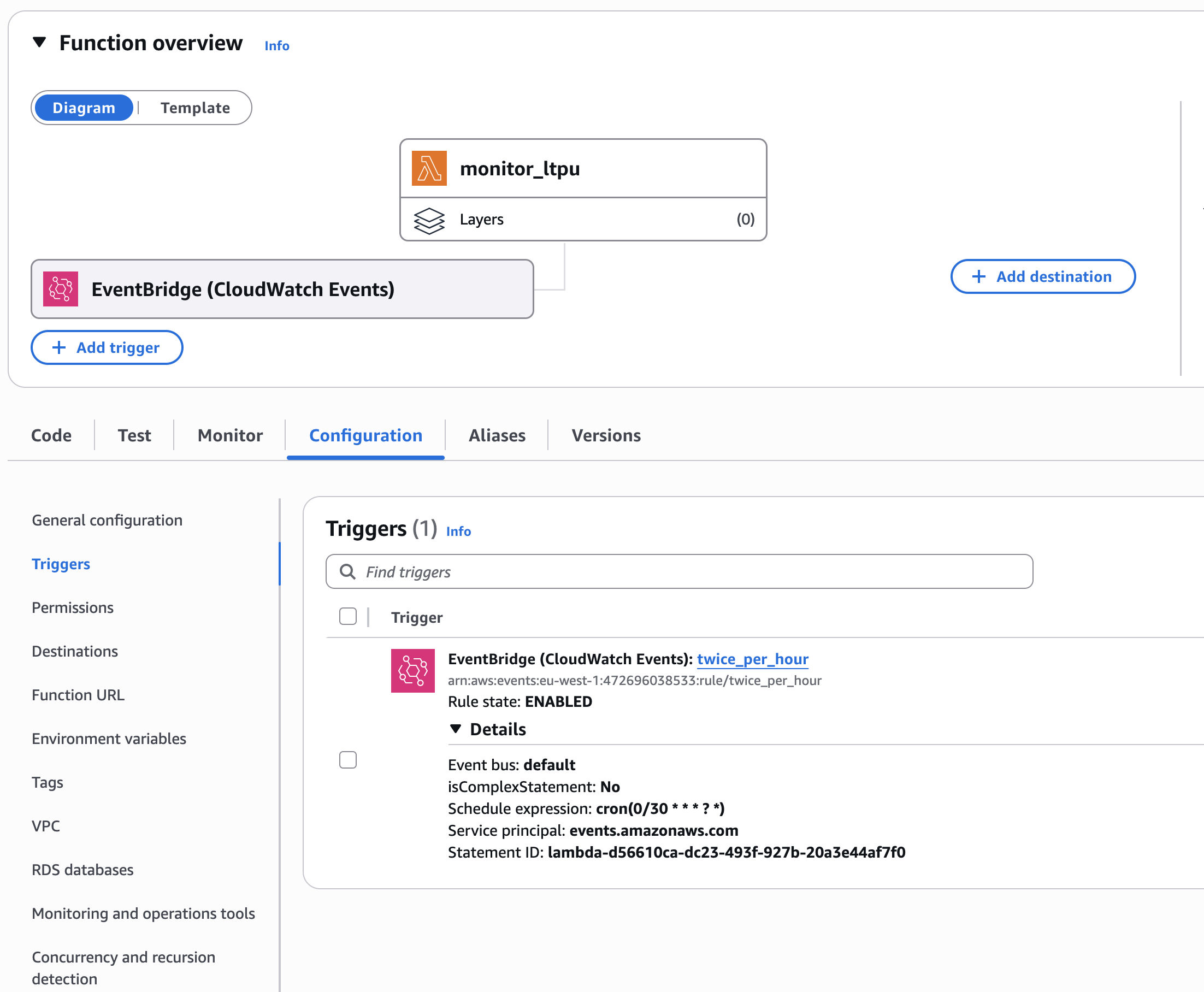
Attach an EventBridge trigger to the function.
-
Create a new rule with this schedule expression:
cron(0/30 * * * ? *)This means it will run every 30 minutes.
AWS Lambda includes 1 million free requests per month and 400,000 GB-seconds of compute time. Since this function runs only twice an hour, you’re well within the free tier — so there’s no cost for running this health check continuously.
IAM Permissions
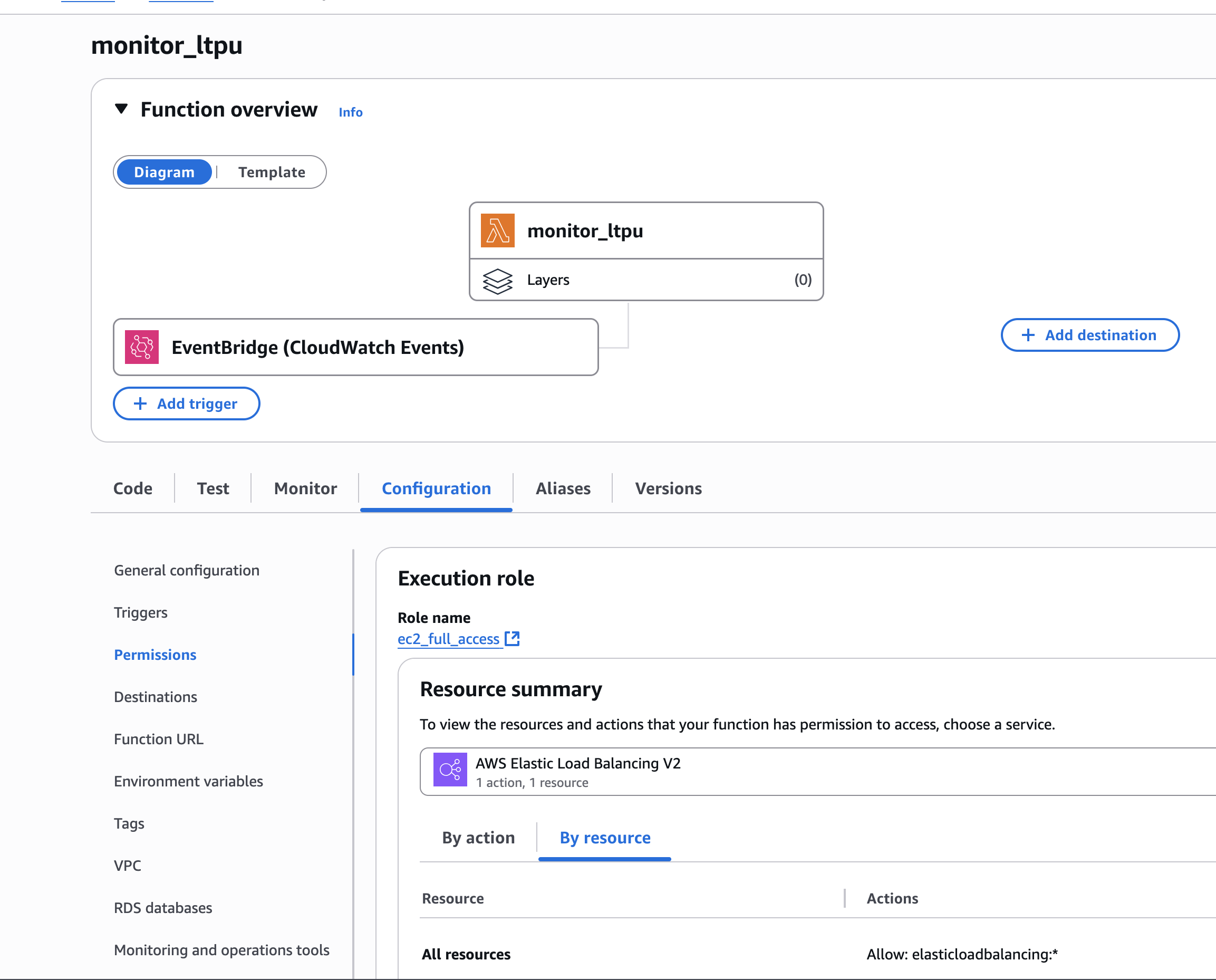
To allow the Lambda function to reboot your EC2 instance:
-
Create a new IAM role.
-
Attach the following least-privilege policy:
{
  "Version": "2012-10-17",
  "Statement": [
    {
      "Effect": "Allow",
      "Action": "ec2:RebootInstances",
      "Resource": "*"
    }
  ]
}-
Assign this role to your Lambda function.
Configuring EC2 to Start the App After Reboots
After a reboot, your EC2 instance needs to automatically start the application.
On Amazon Linux (AMI), you can achieve this with crontab.
-
Create a restart script:
/home/ec2-user/blog/restart_blog.sh
#!/bin/bash

# Kill existing process
kill -9 $(ps -aux | grep -w 'com.example.blog.BlogApplication' | grep -v grep | awk '{print $2}')

# Start application
nohup java -cp /home/ec2-user/blog/JAR com.example.blog.BlogApplication >> /home/ec2-user/blog/logs.log &-
Configure crontab.
sudo yum install cronie
crontab -e
Add the following line:
@reboot /home/ec2-user/blog/restart_blog.shThis ensures your app starts automatically when the instance (re)starts.
Configuring Application Monitoring
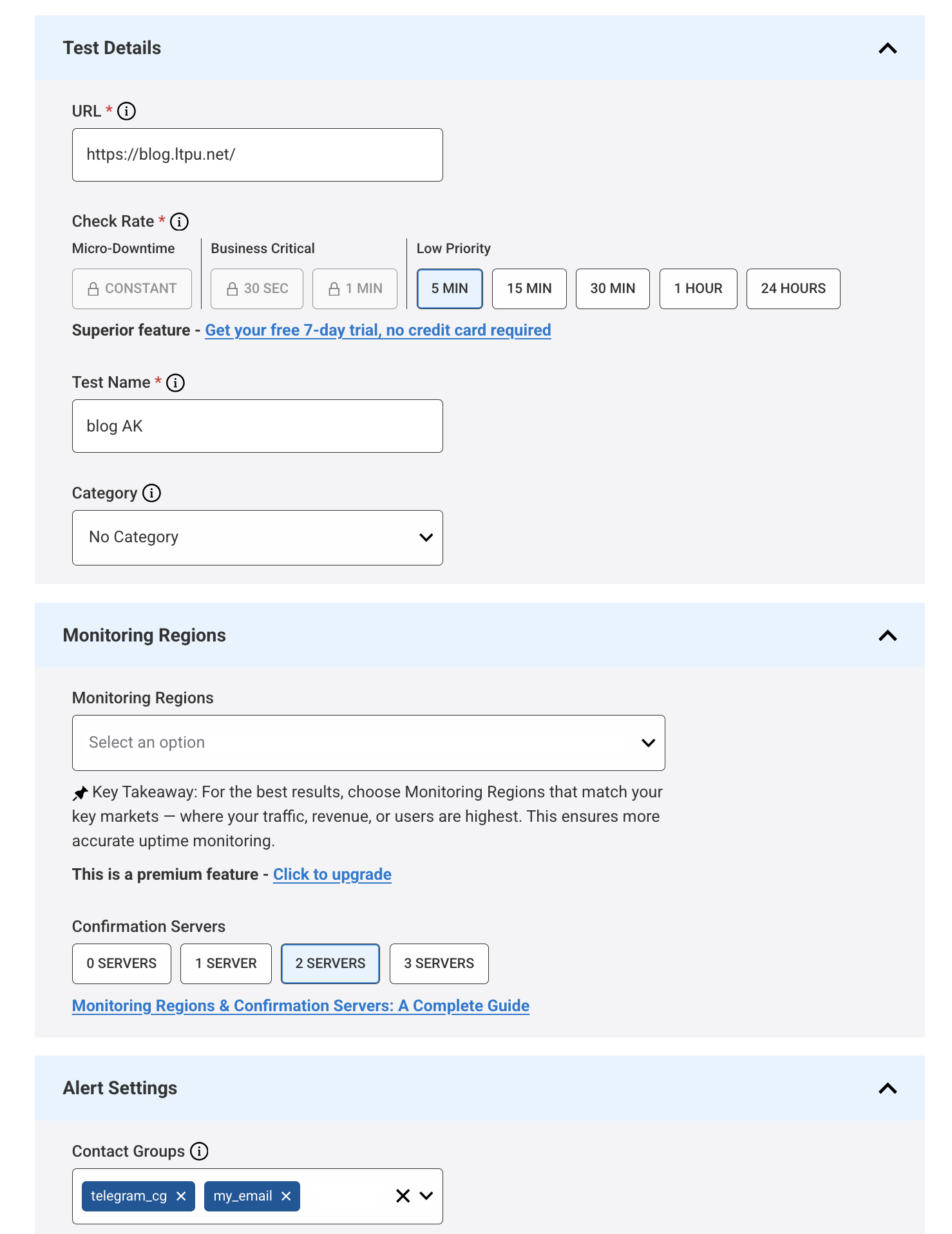
To stay informed about website outages, we’ll use StatusCake, which offers a free uptime monitoring plan that checks every 5 minutes.
-
Create a new uptime check in StatusCake.
-
Set the desired check interval (e.g., 5 minutes).
-
Configure your preferred notification channels:
-
Telegram
-
Email
-
Slack, etc.
-
Summary
With minimal effort and no additional cost, we’ve:
-
Made our EC2-hosted application auto-recoverable using AWS Lambda.
-
Ensured the app starts on reboot via a simple shell script and crontab.
-
Configured monitoring and alerts using StatusCake.
This approach is suitable for non-critical applications or personal projects where brief downtime is acceptable. Similar strategies can be applied in other cloud environments with minor tweaks.
Comments
Leave a comment