Efficient Full Text Search With Vespa: Configure Text To Image Search With CLIP Models
 25 Oct 2024
Text-to-image search allows users to enter a text description and retrieve matching images based on that description. For a example, "couple drinking coffee" query might return the image as follows:
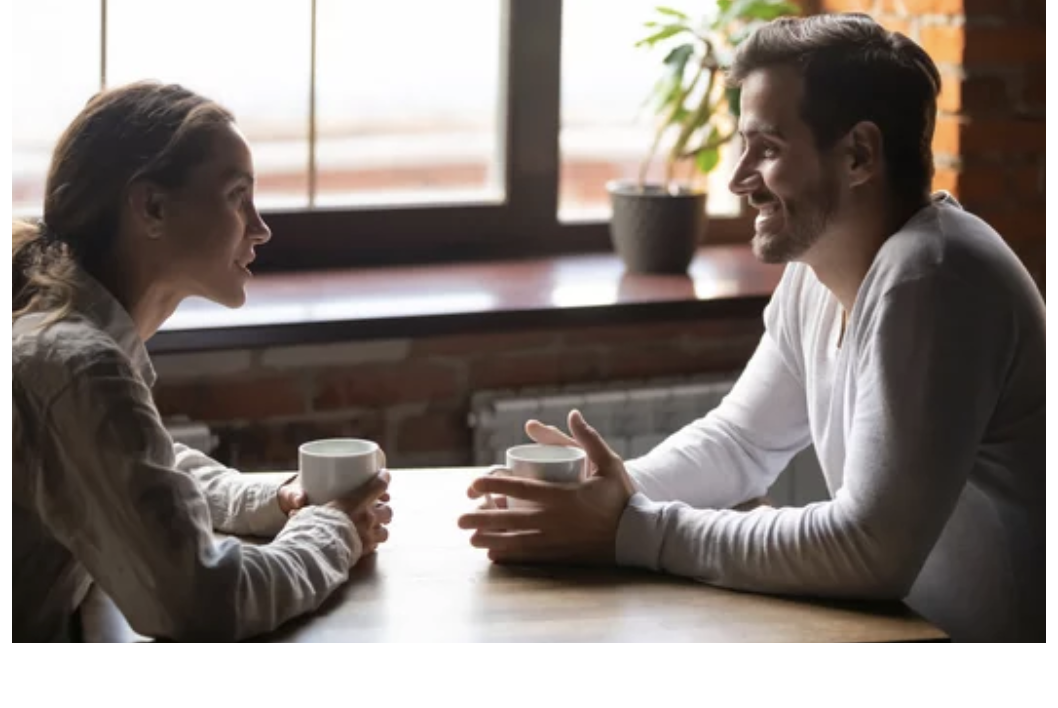
This guide shows how to set up a text-to-image search in Vespa using the CLIP model.
Goal
Configure text-to-image search using CLIP clip-image-vit-32 model to enable retrieval of relevant images based on textual input.
Prerequisites
-
Ensure Configure Semantic Search is completed.
-
Docker-compose installed.
-
JDK 17+ installed.
-
Maven 3+ installed.
Add Fields and Rank Profile
Define image_url and vit_b_32_image fields in the schema:
field image_url type string {
    indexing:  summary
}

field vit_b_32_image type tensor<float>(x[512]) {
    indexing: attribute | index | summary
    attribute {
        distance-metric: euclidean
    }
    index {
        hnsw {
            max-links-per-node: 16
            neighbors-to-explore-at-insert: 200
        }
    }
}
where
-
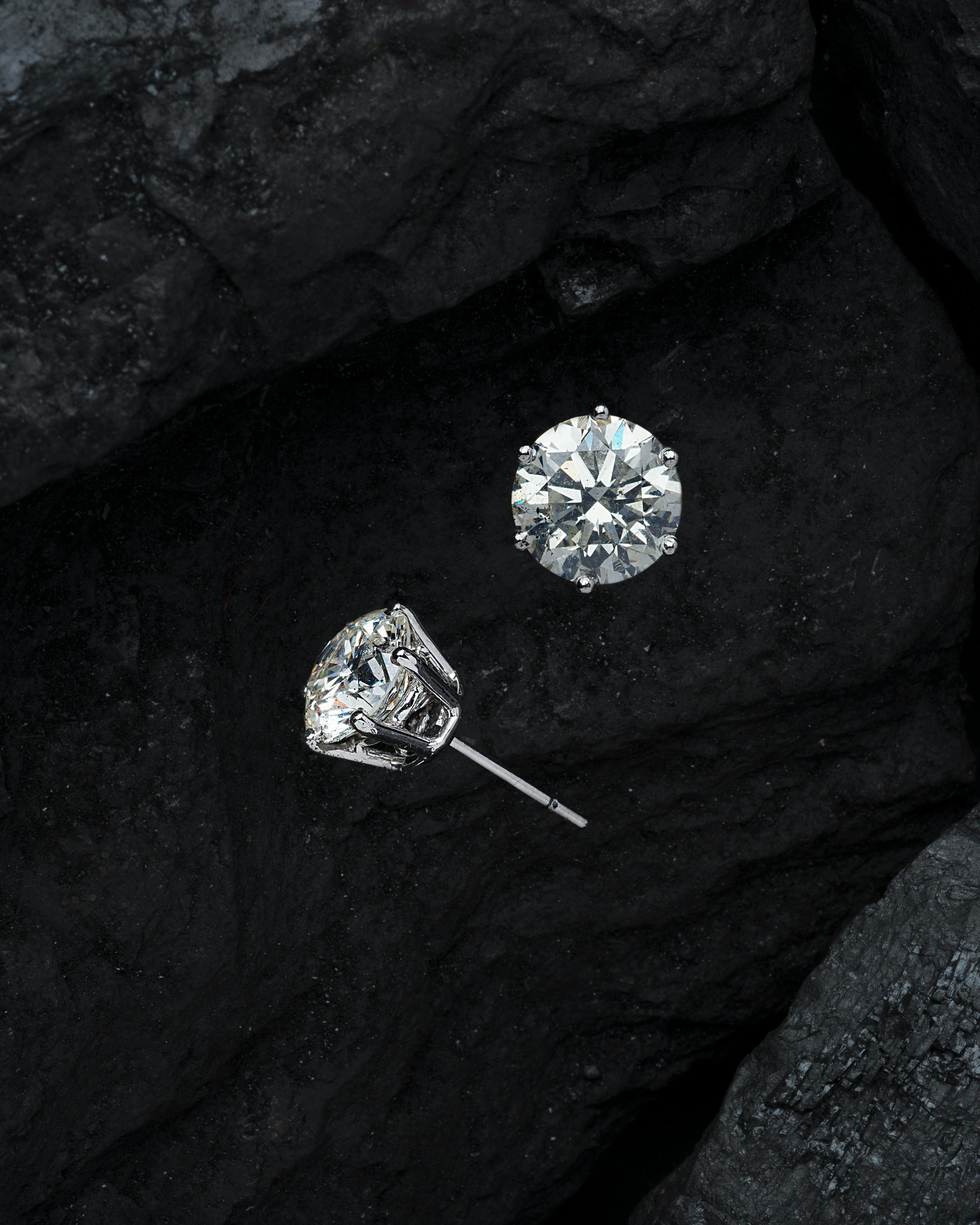
image_urlis filled during feeding with values like https://ak-pub-images.s3.eu-central-1.amazonaws.com/pexels-photo-2735970.jpeg. -
vit_b_32_imageis populated automatically byImageEmbedderProcessorcomponent, which creates a tensor based on the image content inimage_url.
Create a new rank profile:
rank-profile vit_b_32_similarity inherits default {
    inputs {
      query(vit_b_32_text) tensor<float>(x[512])
    }

    first-phase {
      expression: closeness(label, nns)
    }
  }
In this setup, the label nns is defined in the query profile, as shown below
Create book_image_v1 query-profile:
<?xml version="1.0" encoding="UTF-8"?>
<query-profile id="book_image_v1">
    <field name="maxHits">100</field>
    <field name="maxOffset">100</field>
    <field name="hits">10</field>
    <field name="ranking.profile">vit_b_32_similarity</field>
    <field name="text_embedding_enabled">true</field>

    <field name="yql">select * from book where
        ({"targetHits": 100, "label": "nns"}nearestNeighbor(vit_b_32_image, vit_b_32_text))
        %{query_filter}
    </field>

    <field name="timeout">2s</field>
    <field name="rules.off">false</field>
</query-profile>
Here, the vit_b_32_text parameter is populated by TextEmbeddingSearcher component which computes the embedding based on the search_term parameter
Setting Up Models in VAP
CLIP includes two models: one for text and one for images. They are trained together by pairing images with text descriptions.
Download image clip_image_vit_b_32_v1.onnx
and text clip_text_vit_b_32_v1.onnx models.
Place them in the ./models folder and rename to clip_image_vit_b_32_v1.onnx and clip_text_vit_b_32_v1.onnx respectively.
Creating Components To Utilize The Models
-
Add the necessary codebase components:
-
ImageEmbedderProcessor: Usesclip_image_vit_b_32_v1.onnxto convert image content into tensors, which it stores in a specified document field during feeding -
TextEmbeddingSearcher- Usesclip_text_vit_b_32_v1.onnxto convert text-based search queries into tensors for ranking calculations. -
BPETokenizer- Tokenizer used byTextEmbeddingSearcher
-
-
Add Math-Engine application that exposes an HTTP endpoint to download images from specified URLs and convert them to tensors. This functionality was adapted from openai clip codebase based on the following guideline.
ImageEmbedderProcessorcalls this endpoint to calculate image embedding. -
Define necessary changes in services.xml:
 <model-evaluation/>
 ...
<documentprocessor id="edu.component.ImageEmbedderProcessor" bundle="text-image-search">
    <config name="edu.component.image-embedder">
        <modelName>clip_image_vit_b_32_v1</modelName>
        <schemaToFieldsCfg>
            <item key="book">image_url,vit_b_32_image</item>
        </schemaToFieldsCfg>
    </config>
</documentprocessor>
...
<component id="edu.component.BPETokenizer" bundle="text-image-search">
    <config name="edu.component.bpe-tokenizer">
        <contextlength>77</contextlength>
        <vocabulary>files/bpe_simple_vocab_16e6.txt.gz</vocabulary>
    </config>
</component>
...

<searcher id='edu.component.TextEmbeddingSearcher' bundle="text-image-search">
    <config name="edu.component.text-embedder">
        <modelName>clip_text_vit_b_32_v1</modelName>
        <rankFeatureParam>query(vit_b_32_text)</rankFeatureParam>
    </config>
</searcher>
-
Place the bpe_simple_vocab_16e6.txt.gz vocabulary in the
/book/filesfolder (it’s used byBPETokenizer)
Build and Package Components into VAP
-
Package the components with the vespa maven plugin:
mvn package
-
Copy the generated
./target/application/components/text-image-search-deploy.jarfile to the./book/componentsfolder
Setting Up Docker-Compose and Deploying the VAP
-
Start docker compose:
docker-compose up -d
This will launch the Vespa-Engine and Math-Engine applications as defined in docker-compose.yml
-
Deploy VAP:
vespa deploy book
-
Feed The Documents
Populateimage_urlfield in the test documents with appropriate image URLs and then run:
vespa feed book/ext/docs.json
Execute Search
To test the setup, perform a search for "boat":
curl --location 'http://localhost:8080/search/' \
--header 'Content-Type: application/json' \
--data '{
    "queryProfile": "book_image_v1",
    "search_term": "boat"
}'
The search should return results where "The Open Boat" receives the highest rank.
Summary
By following these steps, we have successfully configured a text-to-image search in Vespa, enabling accurate and efficient image retrieval based on textual descriptions.
Next Steps
Explore Implementing PII Search
Comments
Leave a comment